
Guide
Using StuFly
How the watch app and the phone app work, screen by screen.
Home
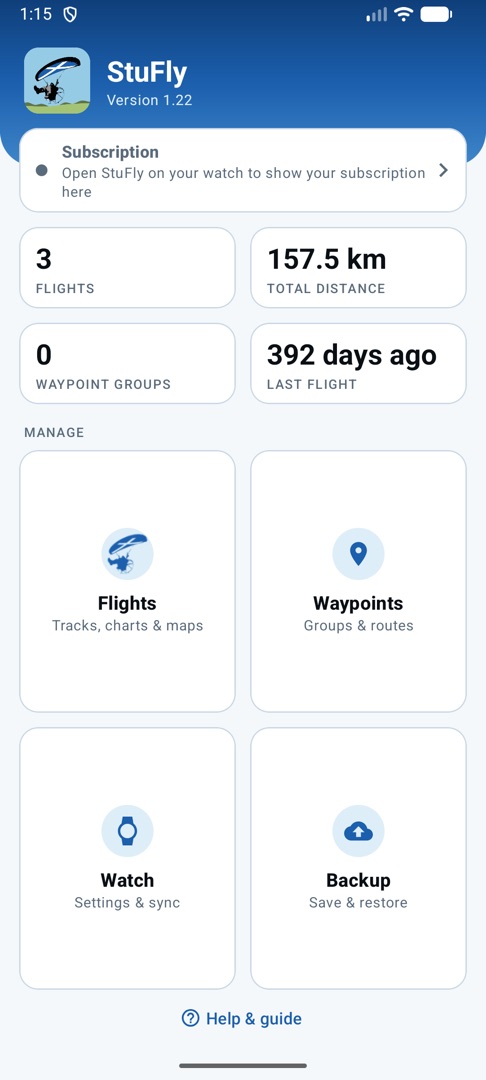
The home screen gives you a summary at a glance: your subscription status, how many flights you've logged, the total distance flown, how many waypoint groups you have, and how long it's been since your last flight.
Below that are the four parts of the app:
- Flights: view, replay and share your flights
- Waypoints: create and edit groups of waypoints
- Watch: view and change the watch app settings
- Backup: save and restore all your data
Help & guide at the bottom opens this page.
iPhone: The home screen is a list: Flights, Waypoints, Watch Settings, Backup & Restore and Help (which opens this page). Below it you can see whether your Apple Watch is paired, whether StuFly is installed on it, and which build it's running.
Tap the subscription row to manage your subscription in Google Play. The subscription itself is bought and checked on the watch; the phone app works whatever its status.
Flights
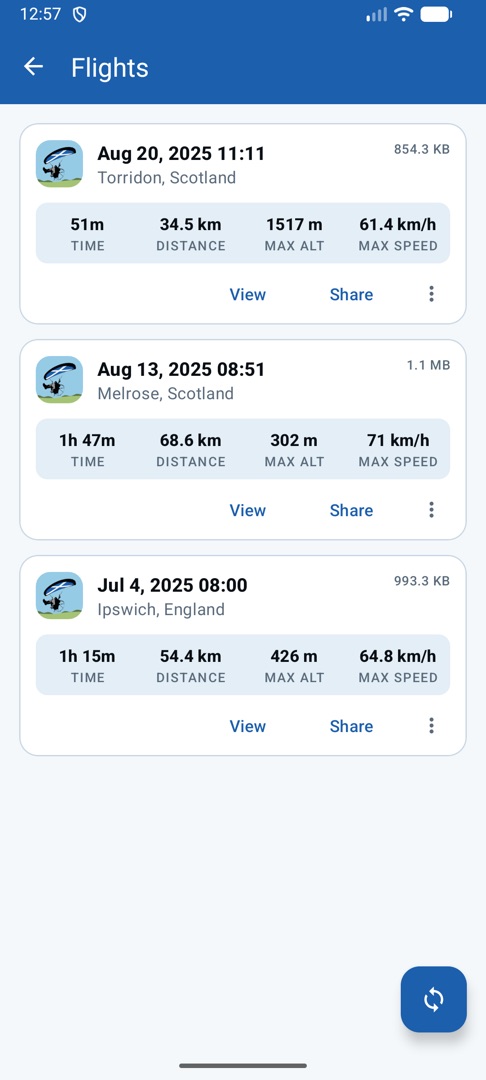
This screen lists all your flights with summary information. A flight is any time the watch app has been started and then exited, so you may want to use the ⋮ menu on a flight to delete any that weren't real flights.
Pull down on the list, or tap the sync button, to ask the watch to send any flights the phone doesn't have yet.
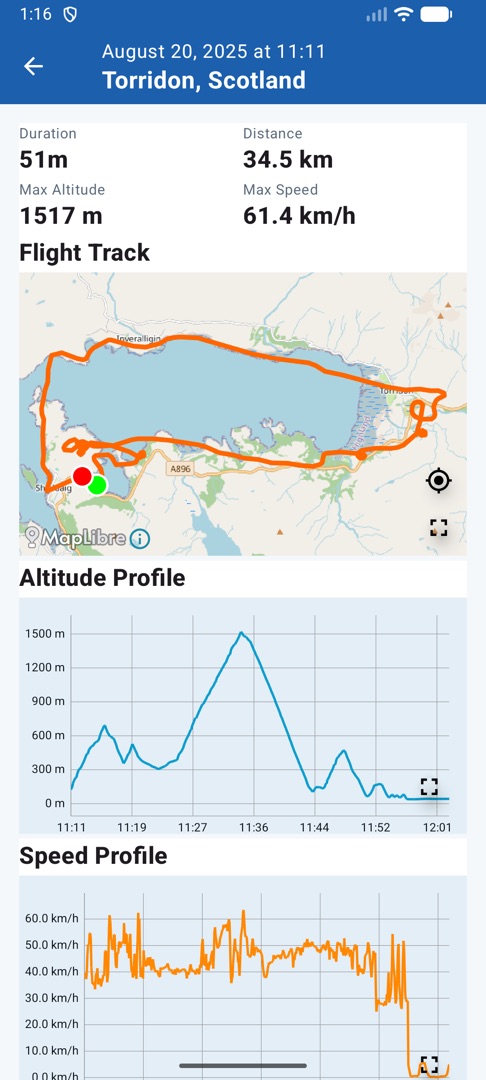
Selecting a flight opens its details. At the top is a summary of the key statistics. Below that is a map of your flight track, then an altitude profile and a speed profile. Each can be expanded to full screen, and you can turn your phone sideways to see more.
In the map you can pinch to zoom, rotate with two fingers and drag to move around, as in any map app.
Tap a point on your track and a marker appears there, and on the altitude and speed graphs too. You can also tap a point on either graph and all three views jump to it. This makes it easy to see where you were at your highest altitude or top speed.
At the bottom of the screen you can export the flight's GPX file to your Downloads folder, or share it straight to another app: most map apps can show GPX files, or send it by email or WhatsApp.
iPhone: Export saves the GPX file to the Files app, and Share log sends the watch's log for the flight.
Waypoints
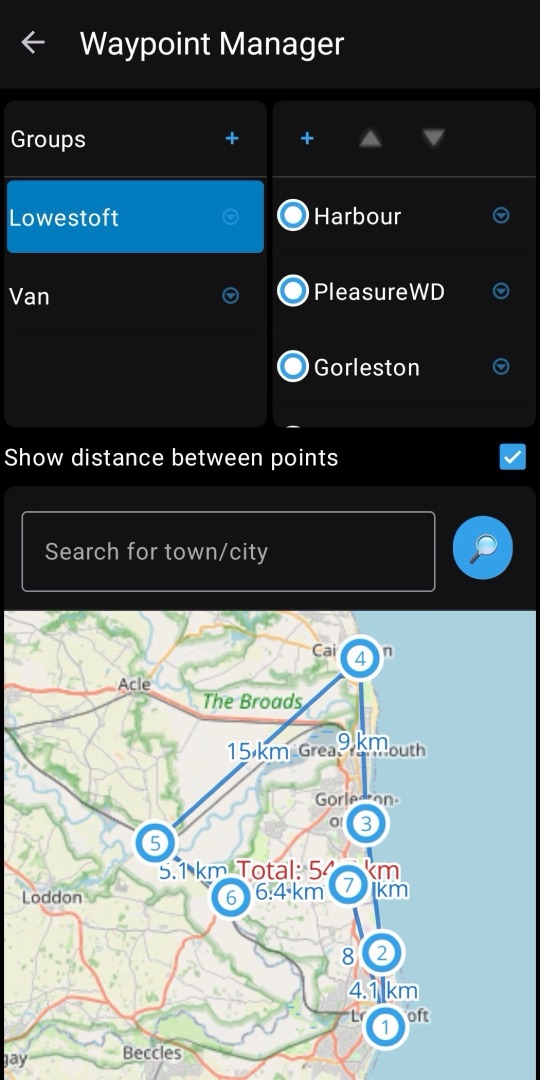
Groups are listed at the top left, with a + to add a new one. To rename or delete a group, select it and use the menu to the right of its name. Group names can be up to 10 characters.
With a group selected you can add waypoints. The easiest way is straight from the map:
- Use the search box to find a place, then move and zoom the map with your fingers. Zoom in to be as precise as you can.
- Press and hold on the spot you want. The Add Waypoint dialog opens with the coordinates already filled in.
- Give the waypoint a name (up to 10 characters). It appears in the waypoint list on the right for that group.
Waypoints are numbered automatically by their position in the list. Add a second waypoint and it appears on the map as a 2 in a circle.
Now select that waypoint in the list and use the up and down arrows to move it to the top. Both waypoints change number: their names stay the same, but their order has changed. The order is your planned route through the waypoints. It matters on the watch, which moves through them in number order, automatically or by hand.
Tick Show distance between points above the map to draw your route. You'll see the distance between each pair of waypoints and the total planned distance, so you can try different orders until you have a route you like.
Tap the sync icon at the top right, or leave the screen, to send your changes to the watch.
iPhone: Switch between the group list and its waypoints at the top. Add a waypoint with the Add waypoint button (at the crosshair in the middle of the map) or by pressing and holding the map; the route lines are under Map options. The phone also re-sends your waypoints by itself if the watch's copy is missing, for example after reinstalling the watch app.
Watch settings
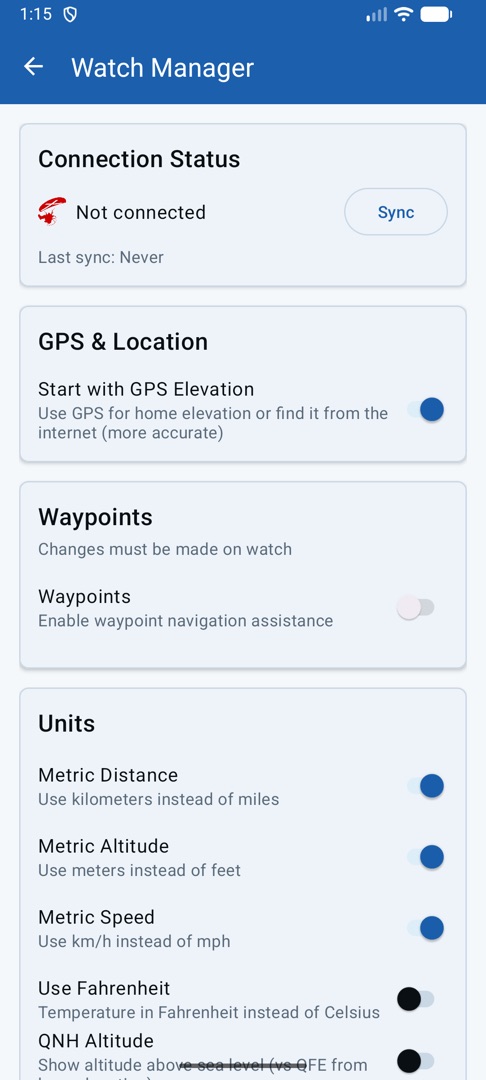
Many of the watch app's settings are shown here. It's an easy way to check them all without scrolling through them on the watch, and you can change them here too. Setting up your preferred units, map view and so on is often quicker from the phone.
The connection card shows whether the watch is connected and when it last synced. Tap Sync to sync now.
See watch settings for what each setting does.
Backup & restore
Backup saves all your flights (including their GPX tracks and logs), waypoint groups and waypoints into a single zip file in your Downloads folder, named with the date and time. Keep a copy somewhere safe, for example cloud storage, especially before changing phones.
Restore reads a backup file and replaces the data on the phone with it. You'll be warned before anything is replaced.
Settings and subscription status aren't included; they come from the watch when it next syncs.
iPhone: Backups are saved wherever you choose in the Files app. A backup made on Android can be restored on an iPhone.
Basics
Recording starts on its own
StuFly starts recording as soon as it gets a GPS lock, and keeps recording until you exit the app. This is by design, so make sure you exit when you've finished your flight. Otherwise StuFly keeps running in the background and uses battery. Double-tap the screen (or press back) to exit; your flight is then saved and sent to the phone.
Apple Watch: End the flight with End Flight on the last screen, or in Settings. If a flight is still running after 90 minutes you'll get a reminder, then another every 30 minutes. Each flight is also saved in the Health app as a workout. You can add StuFly to your watch face as a complication to start a flight with one tap.
Moving between screens
Swipe up or down to move between the screens: Flight → Map → Wind → Cloud → Vario (if switched on) and back round.
Apple Watch: You can also turn the Digital Crown. The last screen is End Flight rather than back round to Flight.
A swipe down from the very top edge of the watch opens the watch's own quick settings. Start your swipe a little below the top edge, or swipe from the bottom up.
Flight data
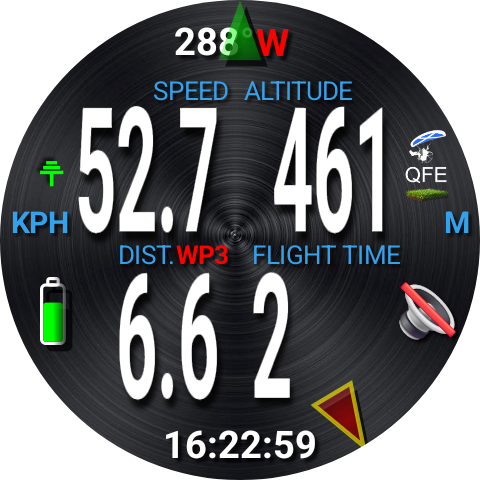
This is the screen you'll probably use most. It packs a lot into a small space, but once you know where each item is you'll soon get used to it.
- Top: your heading in degrees, with the nearest compass point beside it (for example 350 N).
- Middle: speed and altitude.
- Below that: two readouts. On the left is the distance to home, or to your next waypoint (shown as WP1, WP2…) if a waypoint group is selected. On the right is your flight time.
- Bottom: the current time.
Around the edge:
- Battery (left): turns orange below 30% and red below 10%.
- Antenna (above the battery): green when the watch has internet access, which maps and weather need; red when it doesn't. StuFly still works without it, just without maps or weather.
- QFE/QNH (right): grass underneath means altitude above your take-off point (QFE); sea underneath means altitude above sea level (QNH). This only changes the display: flights are always recorded as height above sea level.
- Speaker (right): whether vario sound is on.
- Pointer (edge): the direction to home or your selected waypoint.
Apple Watch: The time is at the top right, and the antenna, QFE/QNH and speaker icons sit along the bottom.
Settings
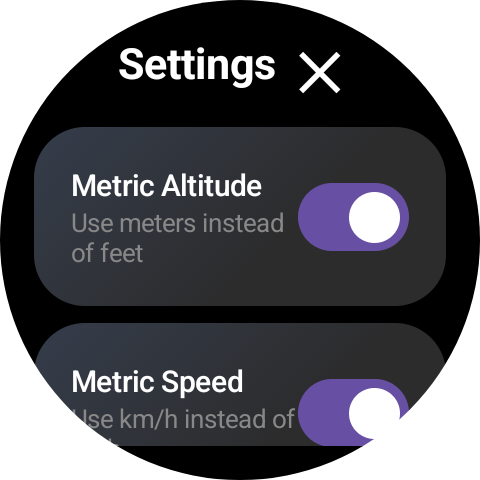
Long-press the flight screen to open Settings. Here you can configure many of the app's functions and how it shows information. Most settings can also be changed from the phone app.
Apple Watch: Long-press the Flight, Map, Wind or Cloud screen. After a demo mode change, Settings can only be closed by restarting the flight.
- Demo mode
- Choose one of three recorded flights and a playback speed. The app restarts and replays that flight as if you were flying it. It's a good way to learn the screens on the ground. Tip: set up a waypoint group along the demo flight's path to see how waypoint auto-advance works.
- QNH altitude
- On: altitude above sea level (QNH). Off: altitude above your take-off point (QFE).
- Metric distance
- On: metres and kilometres. Off: feet and miles.
- Metric altitude
- On: metres. Off: feet.
- Metric speed
- On: km/h. Off: mph.
- Use Fahrenheit
- Show temperatures in °F instead of °C.
- Heading-up map
- On: the map turns so your heading is always up. Off: north is always up.
- Show compass cardinals
- Show or hide N, E, S and W on the map.
- Dark map
- Use a dark map style, which also saves battery.
- Vario screen
- Show or hide the vario screen. When it's on, you can also turn vario sound on or off.
- Waypoints
- Turn waypoint navigation on or off. Only shown once you've created waypoint groups in the phone app.
- Waypoint group
- Tap to choose which of your groups to fly, or none.
- Auto-advance
- Move on to the next waypoint automatically once you're within the arrival radius of the current one.
- Radius
- How close you need to get before a waypoint counts as reached. Choose from three distances.
Map
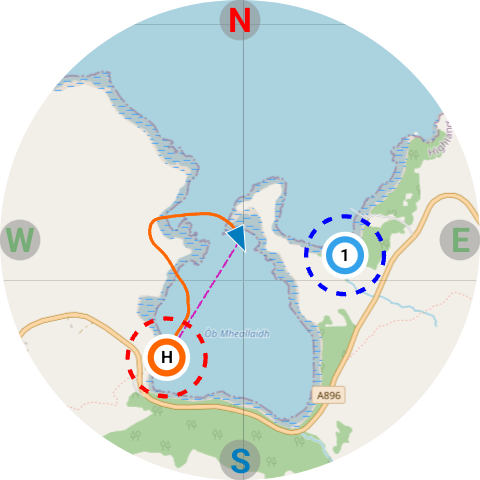
A moving map with an arrow in the middle showing where you are. Tap the screen to cycle through the zoom levels. Your track is drawn in orange as you fly, and a dashed line points to your selected waypoint, or home if none is selected. If a waypoint group is selected, its waypoints are shown on the map too.
To choose a waypoint: press and hold the map. The waypoints cycle slowly (H → 1 → 2 → 3…), each showing its name. Lift your finger when the one you want is showing. The dashed line now points to it, and the waypoint is also marked at the map's edge where the line leaves the screen. The flight screen updates to show distance and direction to it too.
The map can be north-up or heading-up, the compass points can be shown or hidden, and there's a dark style to save battery. All of these are in settings.
Apple Watch: The map uses Apple Maps. While the screen is dimmed it doesn't move; raise your wrist or tap it and it catches up with your position.
Wind
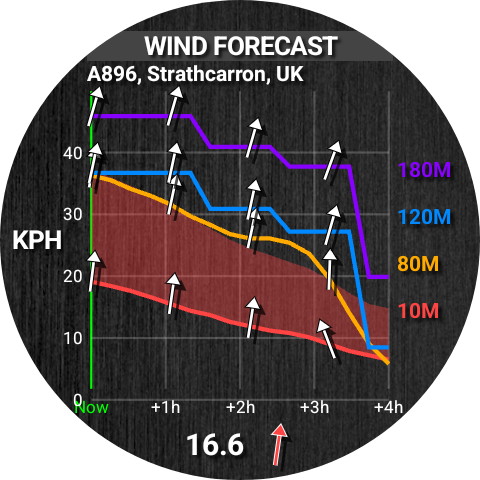
Forecast wind speed and direction at several heights, now and for the next four hours, kept up to date for where you are.
Each coloured line is one height (10 m, 80 m, 120 m and 180 m), with wind speed up the side. The arrows on each line show the wind direction. The red shaded area above the ground-level (red) line is the predicted gust range: a wide band means gusts could reach the top of it.
Compare the heights too: is the wind stronger higher up, or from a different direction?
The current forecast speed and direction are shown at the bottom.
These are forecasts, not measurements from the watch. Treat them as a guide alongside your own experience.
Cloud
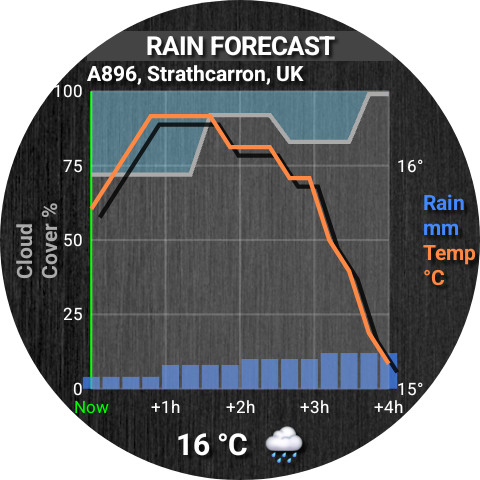
The forecast for the next four hours: low cloud cover as a percentage (white for cloud, blue above it for clear sky), expected rain as blue bars, and temperature as an orange line.
The current temperature and a weather icon are shown at the bottom.
Vario
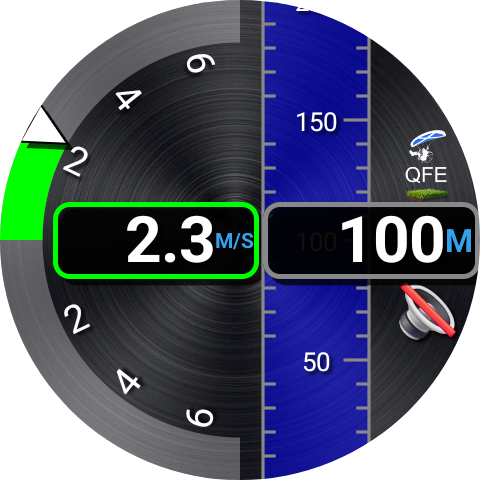
If switched on in settings, this screen is a variometer. On the left, a dial shows your climb or sink rate; on the right, a moving altitude tape. Together they show at a glance how fast you're climbing or sinking.
The speaker icon shows whether sound is on. Long-press the screen to turn it on or off, or change it in settings. With sound on, StuFly beeps like any other vario to tell you your climb or sink rate.
The vario is mostly a free-flight tool, so it can be turned off in settings. When it's off, the screen is skipped. The QFE/QNH icon on the right reminds you which altitude you're seeing.
Watches have their pressure sensor and air port in different places, and yours may sit in the airflow as you fly, which makes the readings noisy. If so, try covering the port with your sleeve or a piece of cloth.
Getting help
Email stuflydev@gmail.com.
Please include as much as you can about the problem:
- the app version (shown on the phone app's home screen)
- your watch and phone models
- what you were doing and what happened
- the GPX file for the flight (Flights → Share), and its log file if you have it
Subscription
StuFly is a yearly subscription through Google Play and starts with a free trial. You can manage or cancel it at any time in Google Play subscriptions.
Safety
StuFly is an aid to situational awareness, not a certified flight instrument. Always fly within your training, check weather from official sources, and never rely on a single device.